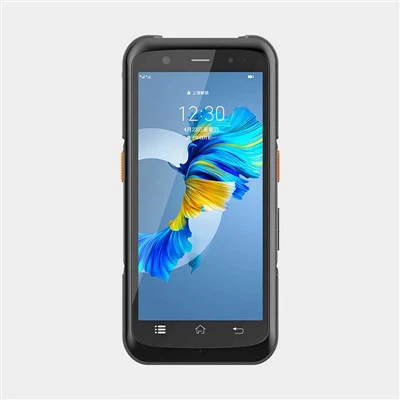
As a supplier of RFID tablets, I understand that users may encounter various common issues when using these devices. In this blog, I'll share some effective ways to troubleshoot these problems, ensuring that your RFID tablets operate smoothly and efficiently.
1. Connectivity Issues
One of the most frequent problems users face is connectivity issues. This could involve the RFID tablet not connecting to the RFID tags, the network, or other peripheral devices.
RFID Tag Connectivity
If your RFID tablet is unable to read RFID tags, the first step is to check the distance between the tablet and the tags. RFID technology has a limited range, and if the tablet is too far away from the tags, it may not be able to establish a connection. Make sure that the tablet is within the recommended range for the specific RFID frequency you are using.
Another possible cause could be interference. Other electronic devices, metal objects, or even the environment itself can interfere with the RFID signal. Try moving the tablet and the tags away from potential sources of interference, such as large metal structures or other electronic equipment.
If the problem persists, it might be an issue with the RFID antenna on the tablet. Check if the antenna is properly connected and not damaged. You can also try resetting the RFID reader on the tablet. On most Android - based RFID tablets, you can do this by going to the device settings, finding the RFID reader option, and selecting "Reset" or "Re - scan".
Network Connectivity
For network connectivity problems, start by checking the Wi - Fi or cellular settings on the tablet. Ensure that the Wi - Fi network you are trying to connect to is working properly. You can test this by connecting another device, such as a smartphone or laptop, to the same network.
If you are using a cellular connection, check if your SIM card is inserted correctly and if your account has sufficient data. You can also try toggling the airplane mode on and off, which can sometimes refresh the network connection.


In some cases, the tablet's network settings may be misconfigured. You can try resetting the network settings to their default values. On an Android tablet, this can usually be done in the "Settings" app under "System" > "Reset options" > "Reset Wi - Fi, mobile & Bluetooth".
2. Battery and Power Issues
Battery and power problems are also common with RFID tablets.
Battery Drain
If your RFID tablet's battery is draining too quickly, there are several things you can do. First, check the apps running in the background. Some apps may continue to use the device's resources even when you're not actively using them, which can significantly drain the battery. You can close these apps by going to the "Recent apps" menu on your Android tablet and swiping them away.
Another factor that can affect battery life is the screen brightness. Lowering the screen brightness can help conserve battery power. You can also enable the battery saver mode on your tablet, which typically restricts background processes and reduces the performance of some non - essential features.
If you've tried these steps and the battery still drains quickly, it might be a sign that the battery is old or damaged. In this case, you should consider replacing the battery. You can find compatible replacement batteries from our official website. For more information on battery replacement, you can visit our support page.
Power - On Problems
If your RFID tablet won't turn on, the first thing to check is the power source. Make sure that the tablet is properly charged. Try plugging it into a different power outlet or using a different charging cable.
If the tablet is charged but still won't turn on, you can try performing a hard reset. The method for a hard reset varies depending on the tablet model. Generally, it involves holding down the power button and the volume up or down button simultaneously for a few seconds until the tablet vibrates or the manufacturer's logo appears.
3. Software and Performance Issues
Software Freezing or Crashing
Software freezing or crashing can be very frustrating. When this happens, try closing the app that is causing the problem. You can do this by going to the "Recent apps" menu and swiping the app away.
If the problem persists, try restarting the tablet. A simple restart can often fix minor software glitches.
If the issue is with the operating system itself, you may need to update the software. Check for available software updates in the "Settings" app on your Android tablet under "System" > "Software update". Installing the latest software updates can often resolve bugs and improve the overall performance of the tablet.
Slow Performance
If your RFID tablet is running slowly, there are several steps you can take. First, clear the cache on your tablet. Cached data can take up a lot of space and slow down the device. You can clear the cache by going to the "Settings" app, then "Storage" > "Cached data" and selecting "Clear".
You can also uninstall any apps that you no longer use. This will free up storage space and improve the tablet's performance.
If your tablet has a lot of data stored on it, you can transfer some of the data to an external storage device, such as an SD card.
4. Hardware Issues
Screen Problems
If the screen of your RFID tablet is cracked or damaged, it will need to be replaced. You can purchase a replacement screen from our authorized dealers. Before replacing the screen, make sure to back up all your important data.
If the screen is unresponsive, try cleaning it gently with a soft, dry cloth. Sometimes, dirt or fingerprints on the screen can cause it to be unresponsive.
Button Malfunctions
If the buttons on your RFID tablet are not working properly, check if there is any debris or dirt stuck under the buttons. You can try using a can of compressed air to blow out any debris.
If the buttons are still not working after cleaning, it may be a hardware issue. In this case, you should contact our customer support for further assistance.
5. Compatibility Issues
Tag Compatibility
Not all RFID tags are compatible with every RFID tablet. Make sure that the tags you are using are compatible with the frequency and protocol supported by your tablet. You can find this information in the tablet's user manual or on our product specification page.
Peripheral Device Compatibility
If you are trying to connect peripheral devices, such as barcode scanners or printers, to your RFID tablet, ensure that they are compatible with the tablet's operating system and interface. You may need to install the appropriate drivers or software for the peripheral devices to work properly.
In conclusion, troubleshooting common issues with an RFID tablet requires a systematic approach. By following the steps outlined above, you should be able to resolve most of the problems you encounter. If you still have issues after trying these steps, don't hesitate to contact our customer support team. We are always here to help you get your RFID tablet up and running smoothly.
If you are interested in purchasing our RFID tablets, Rfid Portable Reader, Android LF RFID Reader, or Phone Back Clip Rfid Reader, we welcome you to contact us for further discussion and negotiation. We offer high - quality products and excellent after - sales service.
References:
- RFID Technology Basics: A Guide for Beginners.
- Android Device Troubleshooting Manual.
- User Manuals of Our RFID Tablets and Related Products.