Printing in a specific size with a PDA printer can be a crucial task for many businesses and individuals. As a PDA printer supplier, I understand the importance of providing clear guidance on how to achieve this. In this blog post, I will share some practical tips and steps to help you print in a specific size using a PDA printer.
Understanding PDA Printers
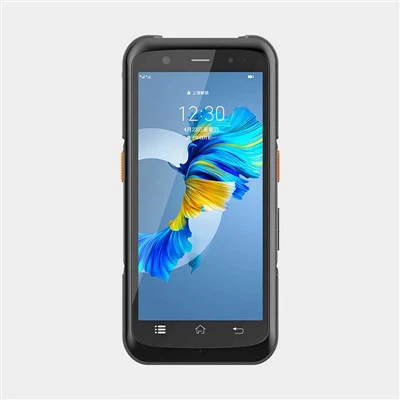
Before we dive into the printing process, let's first understand what a PDA printer is. A PDA (Personal Digital Assistant) printer is a portable device that can be connected to a PDA or a smartphone. It is designed to print various types of documents, such as receipts, labels, and barcodes, on the go. There are different types of PDA printers available in the market, including Handheld PDA Printer and Android PDA Printer. These printers offer different features and capabilities, so it's important to choose the one that best suits your needs.
Step 1: Choose the Right Printer
The first step in printing in a specific size is to choose the right PDA printer. Different printers have different printing capabilities, including the maximum and minimum print sizes. When selecting a printer, consider the size of the documents you need to print. If you need to print large labels or receipts, choose a printer with a larger print width. On the other hand, if you only need to print small labels or barcodes, a printer with a smaller print width may be sufficient.
Step 2: Select the Appropriate Printing Media
Once you have chosen the right printer, the next step is to select the appropriate printing media. The printing media you choose will depend on the type of document you need to print and the size you want to achieve. For example, if you are printing labels, you may need to use label paper. Make sure the printing media you choose is compatible with your printer. Check the printer's specifications to ensure that it can handle the type and size of the media you plan to use.
Step 3: Configure the Printer Settings
After selecting the printing media, you need to configure the printer settings to print in the specific size you want. Most PDA printers come with software that allows you to adjust the print settings. Open the printer software on your PDA or smartphone and navigate to the print settings menu. Here, you can set the print size, orientation, and other parameters.
- Print Size: Look for the option to set the print size. You can usually enter the width and height of the print area in millimeters or inches. Make sure to enter the exact dimensions you need for your document.
- Orientation: You can choose between portrait and landscape orientation. Select the orientation that best suits your document.
- Resolution: Adjust the print resolution to ensure high-quality prints. Higher resolutions will result in sharper and more detailed prints, but they may also take longer to print.
Step 4: Prepare the Document
Before printing, you need to prepare the document you want to print. If you are using a word processing or design software, make sure the document is formatted to the size you want to print. You can adjust the margins, font size, and other settings to fit the document within the print area.
If you are printing a barcode or a label, you may need to use a barcode generator or a label design software. These tools allow you to create and customize barcodes and labels with the desired size and information.


Step 5: Print the Document
Once you have configured the printer settings and prepared the document, it's time to print. Connect your PDA or smartphone to the printer using the appropriate cable or wireless connection. Open the document you want to print and select the print option. Make sure to select the correct printer and the print settings you configured earlier.
Before printing a large batch of documents, it's a good idea to print a test page to ensure that the print size and quality are as expected. If there are any issues, you can adjust the settings and try again.
Troubleshooting Tips
If you encounter any problems while printing in a specific size, here are some troubleshooting tips:
- Check the Printer Compatibility: Make sure the printer you are using is compatible with the printing media and the document you want to print. Some printers may have limitations on the types of media they can handle or the maximum print size.
- Update the Printer Drivers: Outdated printer drivers can cause printing issues. Check the manufacturer's website for the latest drivers and install them on your PDA or smartphone.
- Clean the Printer Heads: Over time, the printer heads can become clogged with ink or debris, which can affect the print quality. Follow the manufacturer's instructions to clean the printer heads regularly.
- Check the Printing Media: Make sure the printing media is loaded correctly and is not damaged. If the media is wrinkled or jammed, it can cause printing problems.
Conclusion
Printing in a specific size with a PDA printer is a relatively straightforward process if you follow the right steps. By choosing the right printer, selecting the appropriate printing media, configuring the printer settings, preparing the document, and troubleshooting any issues, you can achieve high-quality prints in the size you need.
If you are interested in purchasing a PDA printer or have any questions about printing in a specific size, please feel free to contact us for more information and to discuss your specific requirements. We are here to help you find the best solution for your printing needs.
References
- Manufacturer's user manuals for PDA printers
- Online resources on PDA printer printing techniques