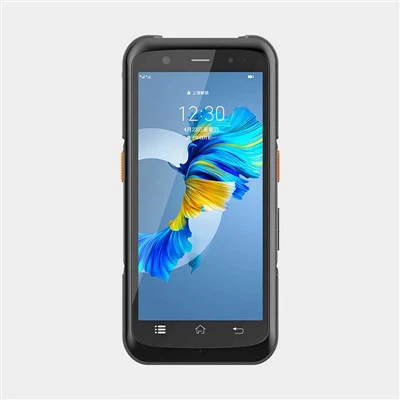
As a supplier of Android PDA Printers, I often receive inquiries from customers regarding how to print in a specific orientation on these devices. Printing orientation can significantly impact the readability and presentation of printed documents, making it a crucial aspect of the printing process. In this blog post, I will share some practical tips and techniques to help you achieve the desired printing orientation on an Android PDA Printer.
Understanding Printing Orientations
Before delving into the methods of printing in a specific orientation, it's essential to understand the two primary printing orientations: portrait and landscape.
- Portrait Orientation: In portrait orientation, the height of the printed page is greater than its width. This is the default orientation for most documents and is suitable for printing text - heavy materials such as letters, reports, and forms.
- Landscape Orientation: Landscape orientation has a greater width than height. It is ideal for printing wide - format content like graphs, charts, and maps, as it provides more horizontal space for displaying data.
Checking Printer Compatibility
Not all Android PDA Printers support both portrait and landscape orientations. Before attempting to print in a specific orientation, you need to ensure that your printer is capable of doing so. You can refer to the printer's user manual or the product specifications on our Android PDA Printer page to confirm its orientation capabilities.
Adjusting Printing Orientation in Android Settings
One of the simplest ways to print in a specific orientation is through the Android device's settings. Here's a step - by - step guide:
- Connect the Printer: First, make sure your Android PDA is connected to the printer. This can be done via Bluetooth, Wi - Fi, or a USB cable, depending on the printer's connectivity options.
- Open the Document or App: Open the document or application from which you want to print. For example, if you're printing a PDF file, open it using a PDF viewer app.
- Access the Print Menu: Look for the print icon or option within the app. This is usually represented by a printer icon. Tap on it to open the print menu.
- Select the Printer: In the print menu, select your Android PDA Printer from the list of available printers.
- Adjust the Orientation: Look for the orientation setting in the print menu. It may be labeled as "Orientation," "Page Orientation," or something similar. You can choose between portrait and landscape orientations here.
- Preview and Print: Before printing, it's a good idea to preview the document to ensure the orientation is correct. Once you're satisfied, tap the "Print" button to start the printing process.
Using Printer - Specific Apps
Some Android PDA Printers come with their own dedicated apps that offer more advanced printing features, including orientation control. These apps are designed to work seamlessly with the printer and provide a user - friendly interface for adjusting printing settings.
- Download and Install the App: Visit the Google Play Store and search for the app specific to your Android PDA Printer. Download and install it on your Android device.
- Connect to the Printer: Open the app and follow the instructions to connect your Android device to the printer.
- Set the Orientation: In the app, look for the orientation settings. You can usually find them in the print settings or preferences section. Select the desired orientation (portrait or landscape).
- Print the Document: Once you've set the orientation, you can select the document you want to print and start the printing process.
Programming for Custom Orientation
If you're a developer or have programming skills, you can also achieve custom printing orientations by using Android's printing APIs. This method allows for more flexibility and control over the printing process.
- Understand the Android Printing APIs: Familiarize yourself with the Android printing APIs, which provide a set of classes and methods for interacting with printers. You can find detailed documentation on the Android developer website.
- Create a Printing Service: Develop a custom printing service that can handle the printing process. In this service, you can set the orientation of the printed page programmatically.
- Set the Orientation: Use the appropriate methods in the Android printing APIs to set the orientation of the printed page. For example, you can use the
PrintAttributes.Builderclass to set the orientation attribute. - Test and Deploy: Test your custom printing service on your Android PDA device and the printer. Make sure it works as expected and then deploy it for use.
Troubleshooting Printing Orientation Issues
Sometimes, you may encounter issues when trying to print in a specific orientation. Here are some common problems and their solutions:

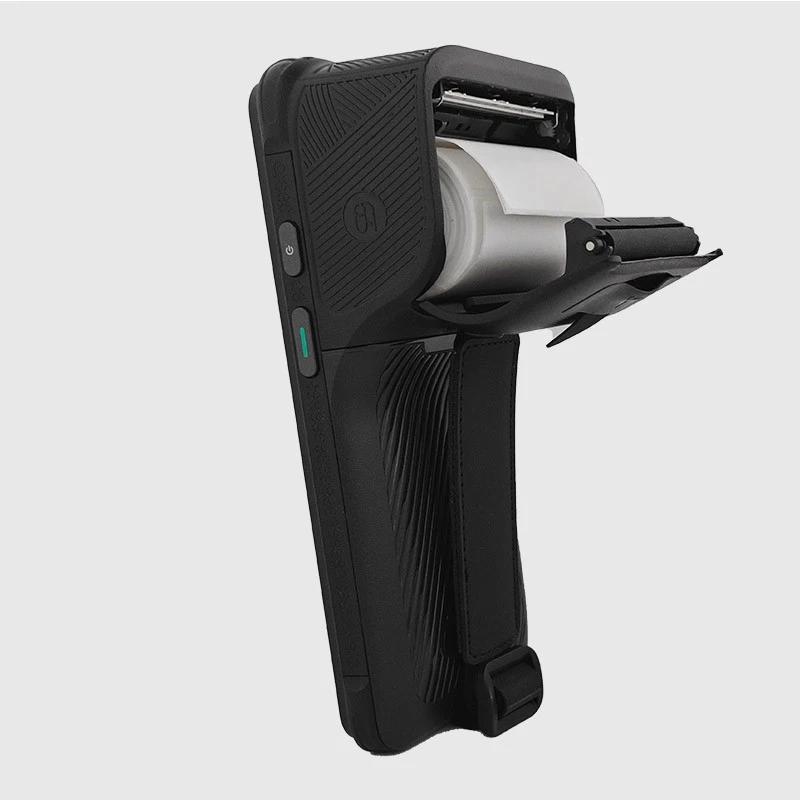
- Incorrect Orientation Displayed: If the printed page has the wrong orientation, check the orientation settings in both the Android device and the printer. Make sure they are consistent.
- Printer Not Supporting Orientation: If your printer does not support the desired orientation, you may need to upgrade to a printer that does. Refer to our Handheld PDA Printer page for more options.
- Software Compatibility Issues: Ensure that your Android device's operating system and the printer driver are up - to - date. Outdated software can cause compatibility issues and affect the printing orientation.
Conclusion
Printing in a specific orientation on an Android PDA Printer is a relatively straightforward process once you understand the available methods and settings. Whether you choose to adjust the orientation through the Android settings, use a printer - specific app, or program a custom solution, you can achieve the desired printing results.
If you have any further questions or need assistance with printing in a specific orientation on our Android PDA Printers, please feel free to contact us for a procurement discussion. We are here to help you make the most of your printing experience.
References
- Android Developer Documentation
- Printer User Manuals