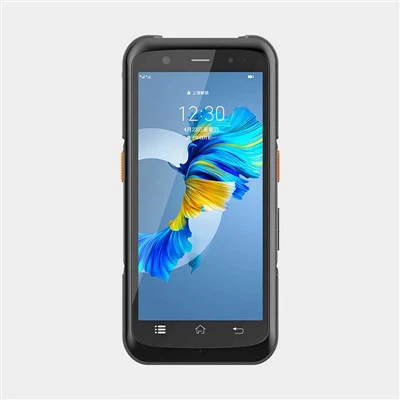
Hey there! As a supplier of PDA Scanner Android devices, I often get asked about the process of pairing a Bluetooth scanner with an Android PDA scanner. It's a common task, but it can be a bit tricky if you're not familiar with the steps. In this blog post, I'll walk you through the process step by step and share some tips to make it as smooth as possible.
Why Pair a Bluetooth Scanner with Your Android PDA?
First off, let's talk about why you'd want to do this. A Bluetooth scanner offers a lot of advantages over a wired scanner. It gives you more freedom of movement since you're not tethered to your PDA. This is super handy in a warehouse, retail store, or any environment where you need to move around a lot while scanning barcodes. It also means you don't have to worry about tangling cords, which can be a real pain in the neck!
Step 1: Check Compatibility
Before you start the pairing process, it's crucial to make sure your Bluetooth scanner and Android PDA are compatible. Most modern Android PDA scanners, like the ones we offer at Link to our Android PDA Scanner product page, support Bluetooth pairing. However, you'll want to double - check the specifications of both your scanner and PDA. Look for the Bluetooth version on both devices. Generally, as long as they're within a few versions of each other, they should work together.
Step 2: Prepare Your Android PDA
- Turn on Bluetooth: On your Android PDA, go to the settings menu. You can usually find the settings icon on your home screen or app drawer. Once in the settings, look for the "Bluetooth" option and turn it on. It may take a few seconds for the PDA to search for available Bluetooth devices.
- Put Your PDA in Pairing Mode: Some Android PDAs may require you to put them in pairing mode specifically. This is usually done by long - pressing the Bluetooth option in the settings or following an on - screen prompt to make the device visible to other Bluetooth devices.
Step 3: Prepare Your Bluetooth Scanner
- Charge the Scanner: Make sure your Bluetooth scanner has enough battery. A low - power scanner may not pair correctly or may disconnect during use.
- Turn on the Scanner: Most scanners have a power button. Press it to turn on the scanner.
- Enter Pairing Mode: The process to enter pairing mode varies depending on the scanner model. Some scanners have a dedicated pairing button, while others may require you to scan a special barcode provided in the user manual to enter pairing mode. Check your scanner's manual for the exact steps.
Step 4: Pair the Devices
- Search for the Scanner on Your PDA: Once your PDA is in Bluetooth discovery mode and your scanner is in pairing mode, your PDA should start detecting the scanner. On the Bluetooth settings screen of your PDA, you'll see a list of available devices. Look for the name of your Bluetooth scanner in the list.
- Select the Scanner: Tap on the name of your scanner to start the pairing process. You may be prompted to enter a passcode. Some scanners use a default passcode like "0000" or "1234". If you're not sure, check the scanner's manual.
- Confirm Pairing: After entering the passcode (if required), your PDA will attempt to pair with the scanner. If the pairing is successful, you'll see a confirmation message on your PDA, and the scanner will be listed as a paired device in the Bluetooth settings.
Step 5: Test the Connection
Once the pairing is complete, it's time to test if the scanner is working properly. Find a barcode and scan it using the Bluetooth scanner. The data from the barcode should appear on your Android PDA. If it doesn't, there could be a few issues:
- Connection Lost: Make sure the scanner is still paired and connected to your PDA. Sometimes, the connection can drop due to interference or low battery. Try turning the scanner off and on again or re - pairing the devices.
- App Compatibility: Ensure that the app you're using on your PDA to receive the barcode data is compatible with the scanner. Some apps may require additional settings or configurations to work with a Bluetooth scanner.
Tips for a Successful Pairing
- Keep Your Devices Close: Bluetooth has a limited range. When pairing, keep your scanner and PDA within a few feet of each other to ensure a strong signal.
- Update Firmware: Check if there are any firmware updates available for your Android PDA and Bluetooth scanner. Updating the firmware can sometimes fix pairing issues and improve performance.
- Read the Manuals: This may seem obvious, but the user manuals for your scanner and PDA are full of useful information. They can provide specific troubleshooting steps and tips for your particular models.
Our PDA Scanner Android Products
As a supplier, we offer a wide range of Rugged PDA and PDA Barcode Scanner products that are designed to work seamlessly with Bluetooth scanners. Our Android PDA scanners are built with the latest technology, ensuring reliable performance and easy pairing.


If you're in the market for a new PDA scanner or have any questions about pairing a Bluetooth scanner with your device, don't hesitate to reach out to us. We're here to help you find the best solution for your business needs. Whether you're running a small retail shop or a large - scale warehouse, our products can enhance your barcode scanning efficiency.
In conclusion, pairing a Bluetooth scanner with an Android PDA is a straightforward process as long as you follow the steps and take a few precautions. With a properly paired scanner, you'll be able to scan barcodes quickly and easily, improving your productivity and making your daily operations smoother.
References
- Bluetooth technology official documentation
- User manuals of various Android PDA scanners and Bluetooth scanners