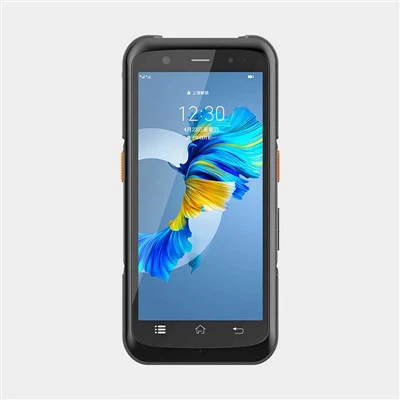
In the fast - paced world of business operations, PDA printers have become an essential tool for many industries, from retail and logistics to healthcare. Keeping the firmware of your PDA printer up - to - date is crucial for optimal performance, security, and compatibility with the latest software and hardware. As a PDA printer supplier, I'm here to guide you through the process of updating the firmware of your PDA printer.


Why Firmware Updates Matter
Before delving into the update process, it's important to understand why firmware updates are so important. Firmware is the software that runs on your PDA printer, controlling its functions and features. Regular updates can bring several benefits:
- Enhanced Performance: New firmware versions often include performance improvements, such as faster printing speeds, better print quality, and reduced paper jams.
- Security Patches: As with any software, PDA printer firmware can be vulnerable to security threats. Firmware updates can fix security vulnerabilities, protecting your data and your business from potential cyberattacks.
- Compatibility: With the rapid development of technology, new software and hardware may require updated firmware to work properly. By keeping your PDA printer's firmware up - to - date, you ensure compatibility with the latest devices and applications.
- New Features: Manufacturers often add new features and functionality to their PDA printers through firmware updates. These features can enhance the usability and versatility of your printer, allowing you to perform new tasks and improve your business processes.
Pre - Update Preparations
Before you start the firmware update process, there are a few steps you should take to ensure a smooth and successful update:
- Check the Compatibility: Make sure the firmware update is compatible with your specific PDA printer model. You can usually find this information on the manufacturer's website or in the printer's user manual.
- Back Up Your Data: Although firmware updates usually do not delete your data, it's always a good idea to back up any important information stored on your PDA printer, such as print templates, settings, and customer data.
- Charge Your Device: Ensure that your PDA printer has enough battery power to complete the update process. A low battery can cause the update to fail, which may result in a non - functional printer.
- Download the Firmware: Visit the manufacturer's website and download the latest firmware version for your PDA printer. Make sure to download the correct version for your printer model and operating system.
Step - by - Step Firmware Update Process
Step 1: Connect Your PDA Printer
There are several ways to connect your PDA printer to your computer for the firmware update. The most common methods include:
- USB Connection: Use a USB cable to connect your PDA printer to your computer. Make sure your computer recognizes the printer. You may need to install the printer drivers if they are not already installed.
- Wi - Fi Connection: If your PDA printer supports Wi - Fi, you can connect it to your local network. This allows you to update the firmware wirelessly, which is more convenient, especially if you have multiple printers to update.
Step 2: Launch the Update Utility
Once your PDA printer is connected to your computer, launch the firmware update utility provided by the manufacturer. This utility is usually available for download on the manufacturer's website.
Step 3: Select the Firmware File
In the update utility, locate the firmware file you downloaded earlier. Select the file and click the "Update" or "Install" button to start the update process.
Step 4: Wait for the Update to Complete
The update process may take several minutes, depending on the size of the firmware file and the speed of your connection. Do not disconnect your PDA printer or turn it off during the update process, as this can cause the update to fail.
Step 5: Verify the Update
After the update is complete, your PDA printer will restart automatically. Once it has restarted, check the printer's settings to verify that the new firmware version is installed. You can usually find the firmware version information in the printer's system settings.
Troubleshooting Tips
If you encounter any problems during the firmware update process, here are some troubleshooting tips:
- Update Failed: If the update fails, make sure your PDA printer has enough battery power and that the firmware file is compatible with your printer model. You can also try restarting your printer and your computer and then attempting the update again.
- Connection Issues: If you are having trouble connecting your PDA printer to your computer, check the USB cable or Wi - Fi settings. Make sure the cable is properly connected and that your Wi - Fi network is working.
- Error Messages: If you receive an error message during the update process, refer to the manufacturer's documentation or support website for more information. You can also contact the manufacturer's customer support team for assistance.
Conclusion
Updating the firmware of your PDA printer is a simple but important process that can improve the performance, security, and compatibility of your device. By following the steps outlined in this guide, you can ensure a smooth and successful firmware update.
As a PDA printer supplier, we offer a wide range of Android PDA Printer and Handheld PDA Printer models to meet your business needs. If you are interested in purchasing a PDA printer or have any questions about firmware updates, please feel free to contact us for a procurement discussion. We are committed to providing high - quality products and excellent customer service.
References
- Manufacturer's user manuals for PDA printers.
- Technical support documentation from PDA printer manufacturers.